

Integration Steps
Step 1: Create an OpenAI Prompt List
First, you need to create a list that defines your moderation prompt.- Navigate to the CometChat Dashboard and select your app.
- Go to Moderation → Settings from the left-hand menu.
- Click on the List tab.
- Click Add List to create a new list.
-
Fill in the required fields:
- Name: Enter a descriptive name for your OpenAI moderation list (e.g.,
openai-moderation) - ID: Enter a unique identifier for the list (e.g.,
openai-moderation-list) - Category: Select OpenAI Prompt from the dropdown
- Description: Enter a description (optional)
- Prompt: Enter your moderation prompt. This prompt defines the criteria OpenAI will use to evaluate content. For example, to detect phone numbers:
- Name: Enter a descriptive name for your OpenAI moderation list (e.g.,
- Click Save to create the list.
Step 2: Configure Advanced Settings
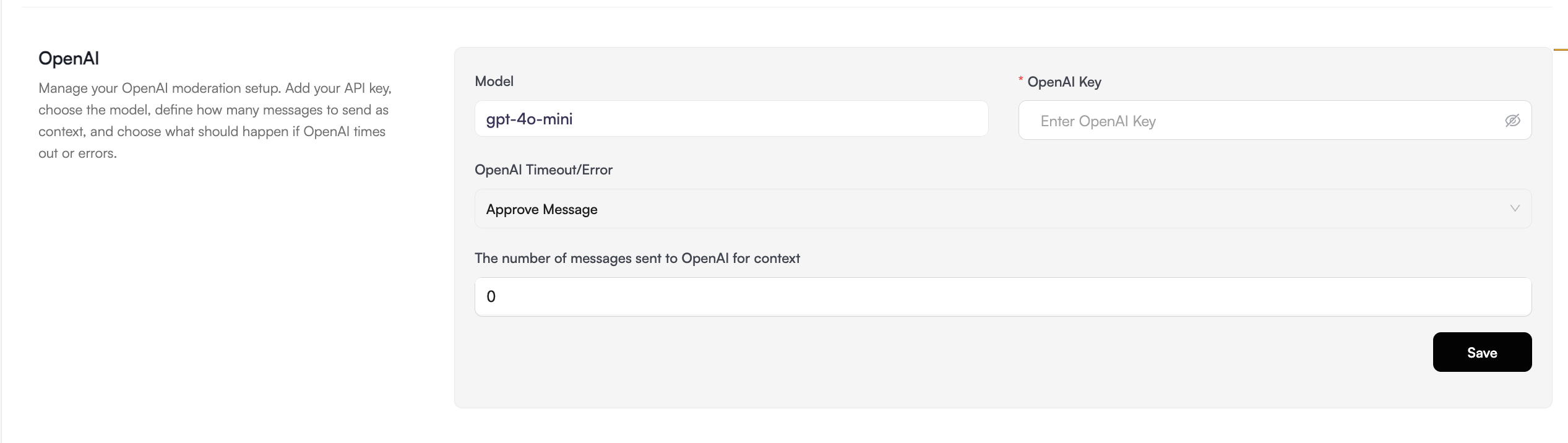
Next, configure the OpenAI model and error handling settings for your OpenAI API.- Navigate to Moderation → Settings.
- Click on the Advanced Settings tab.
- Scroll down to the OpenAI section.
-
Configure the following options:
-
Model: Enter the OpenAI model you want to use (e.g.,
gpt-4-turbo) - OpenAI Key: Enter your OpenAI API key to authenticate requests
-
The number of messages sent to OpenAI for context:
- Set the number of previous messages to include as context (0-10)
- This enables context-aware moderation by providing conversation history
- Set to
0if you don’t need context and only want to moderate individual messages
-
On OpenAI Error:
- Approve Message (Default): Messages are automatically approved if OpenAI is unavailable
- Block Message: Messages are blocked when OpenAI is inaccessible, ensuring no unmoderated content passes through
-
Model: Enter the OpenAI model you want to use (e.g.,
- Click Save to apply the settings.
Step 3: Create a Moderation Rule
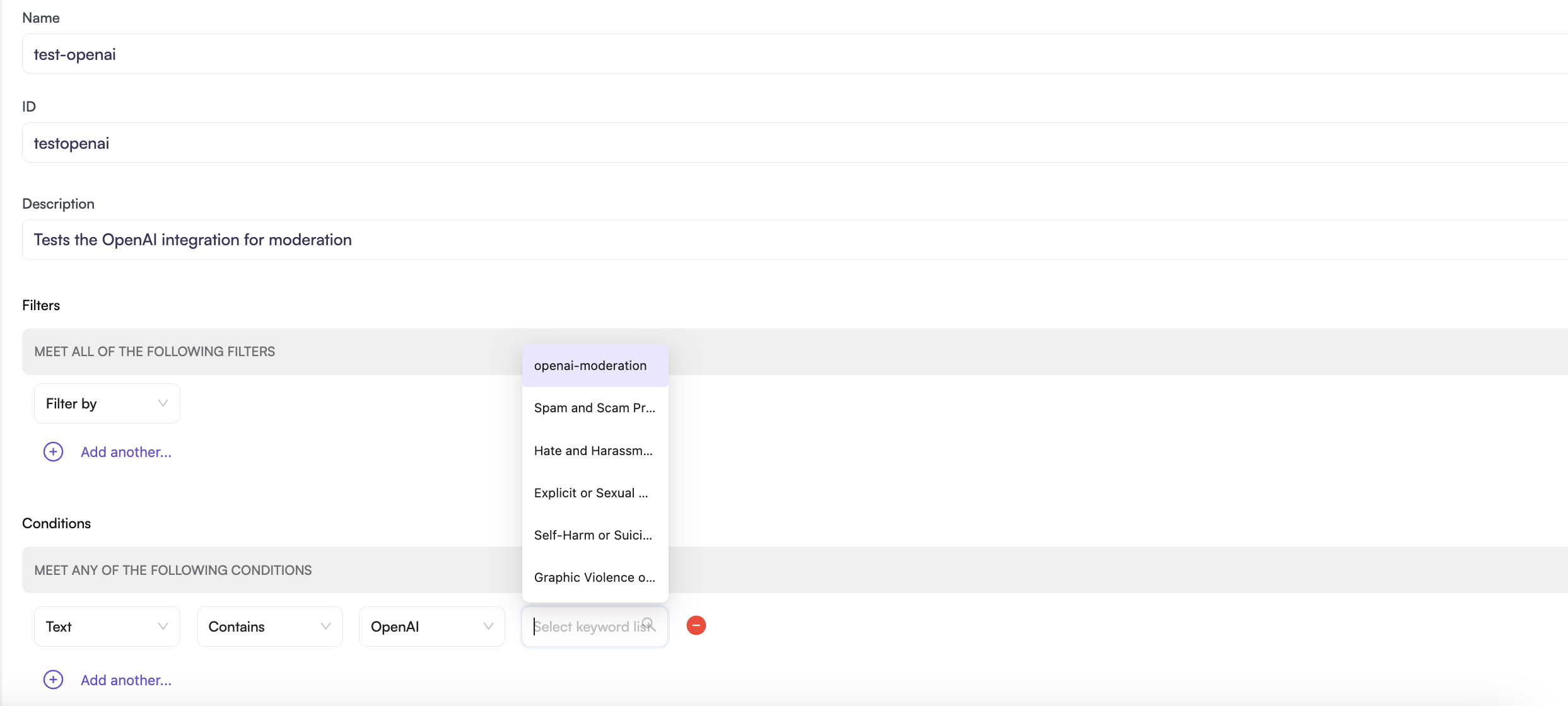
Now, map your OpenAI list to a moderation rule to activate the moderation.- Navigate to Moderation → Rules.
- Click Create New Rule.
-
Fill in the mandatory fields:
- Name: Enter a name for the rule (e.g.,
test-openai) - ID: Enter a unique identifier (e.g.,
testopenai) - Description: Optionally describe what this rule does
- Name: Enter a name for the rule (e.g.,
-
Configure the Conditions:
- Select the content type to moderate (e.g., Text)
- Select Contains
- Select OpenAI
- Choose the OpenAI list you created in Step 1 from the dropdown
- Set the confidence threshold (e.g.,
greater than 80%)- Higher percentages result in stricter matching
- Lower percentages allow more content to pass through
- Configure the Actions to perform when content is flagged (block, flag for review, etc.).
- Click Save to create the rule.
- Enable the rule by toggling it on.
The rule you create should be of type Text Contains or Image Contains to work with OpenAI moderation.